Plug in a USB drive. Press play.

USB Media Player is an app for Samsung TVs. It plays videos, audio and pictures from USB sticks and hard drives, with subtitles, soundtracks the TV can't decode itself, and photos straight from phones and cameras.

Coming soon to the app store on Samsung TVs.

Free for 7 days with everything included. Then €7.99 a year.

How it works

  1. Copy your files to a USB drive

    A USB stick or an external hard drive, formatted exFAT, FAT32 or NTFS. Keep your own folders.

  2. Plug the drive into the TV

    Open USB Media Player. Your drive is on the first screen.

  3. Choose a file and press OK

    Videos and audio play and pictures open, all with the TV's own remote.

What it does

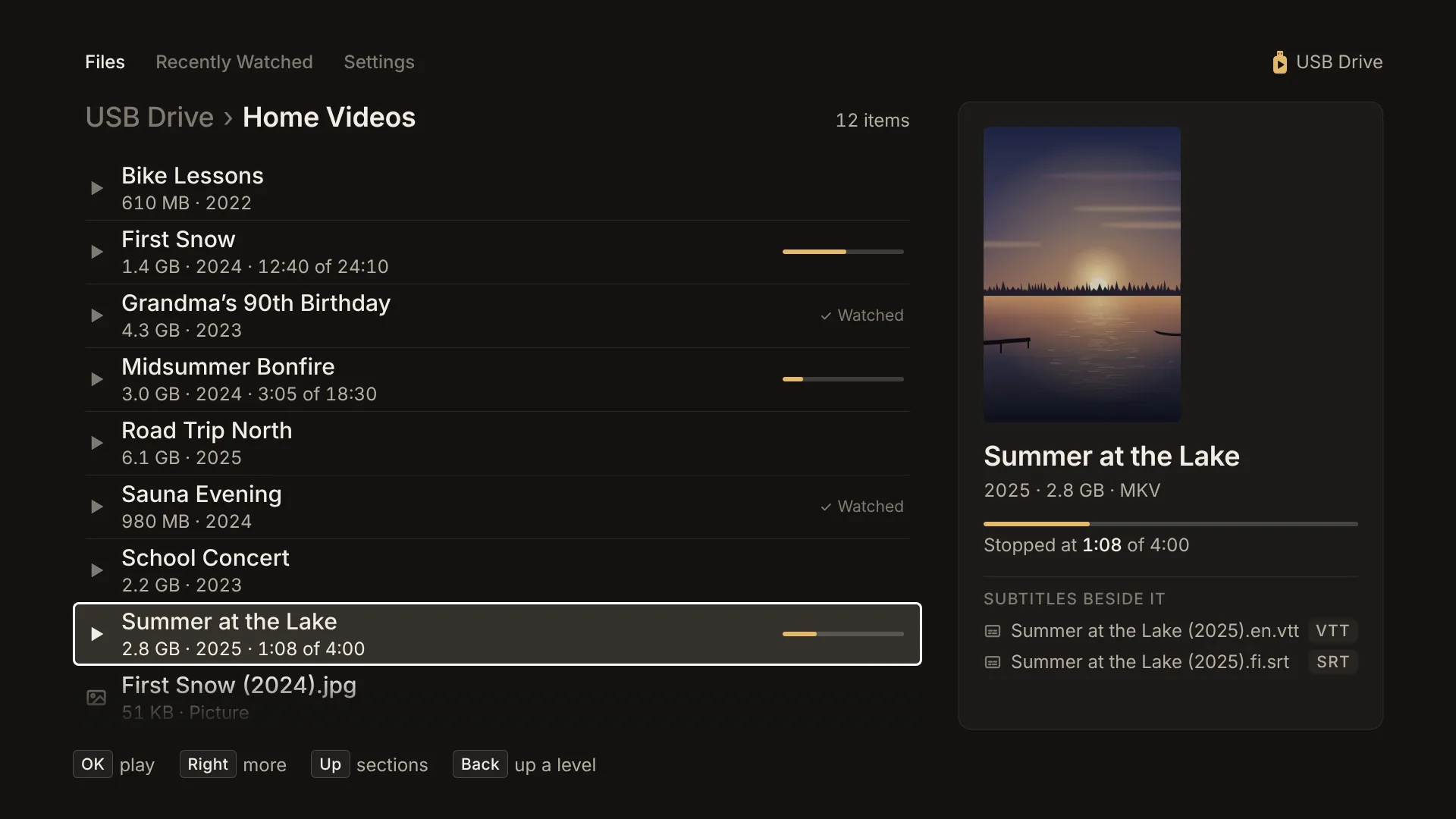
The file browser showing a Home Videos folder. Several videos have progress bars or a Watched mark, and the chosen one shows its poster, where it was stopped, and two subtitle files beside it.

Your folders, as you arranged them

Browse the drive with the remote. Posters and covers show beside each video, and a bar shows how far you got. Stop anywhere and the video starts from the same place next time.

  • Where you stopped is saved on the drive itself, so it carries over to another TV.
  • Recently Watched and Favorites gather videos from every folder.
  • A picture beside a video with the same name becomes its poster. Covers stored inside the file are used too.
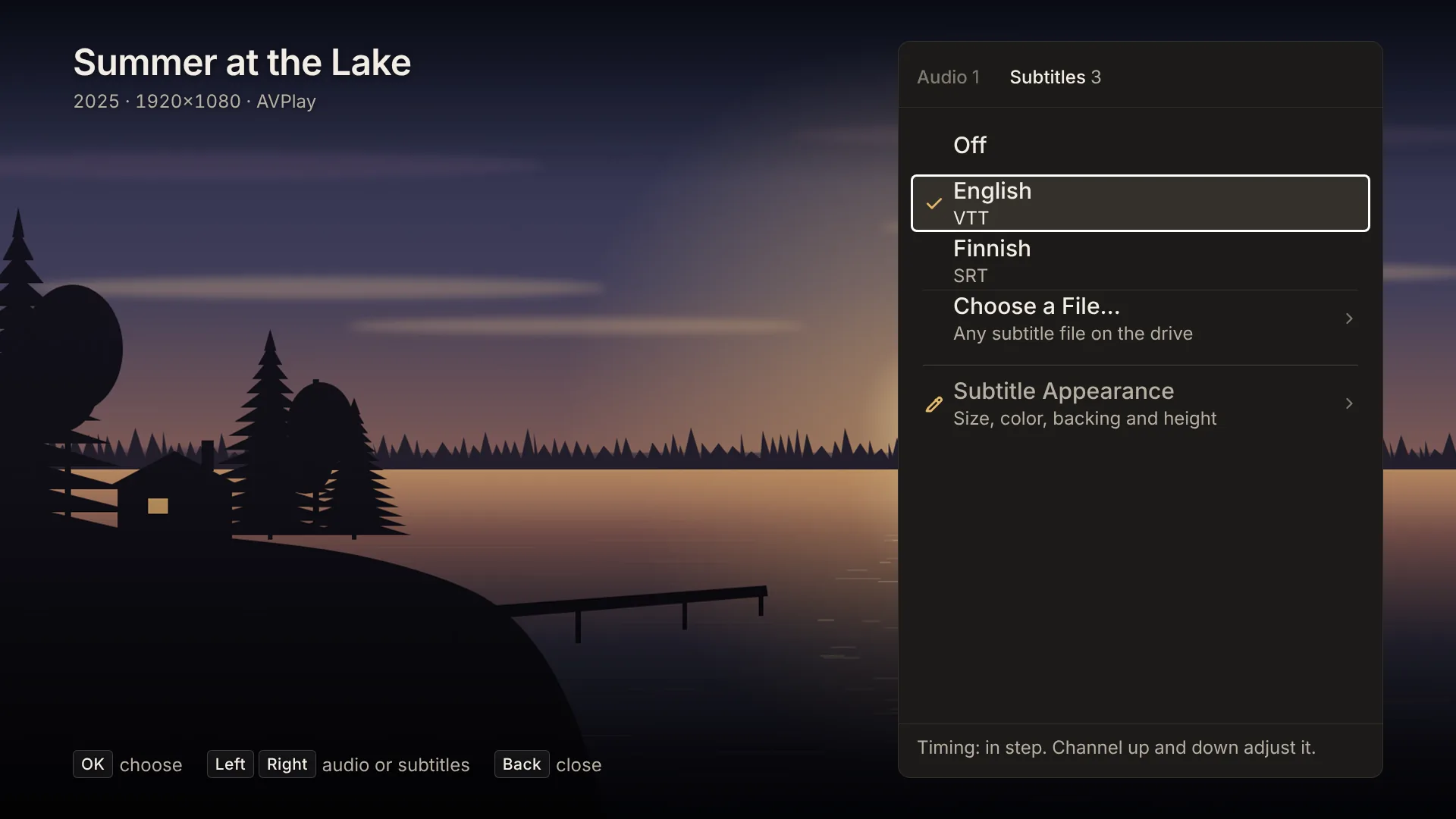
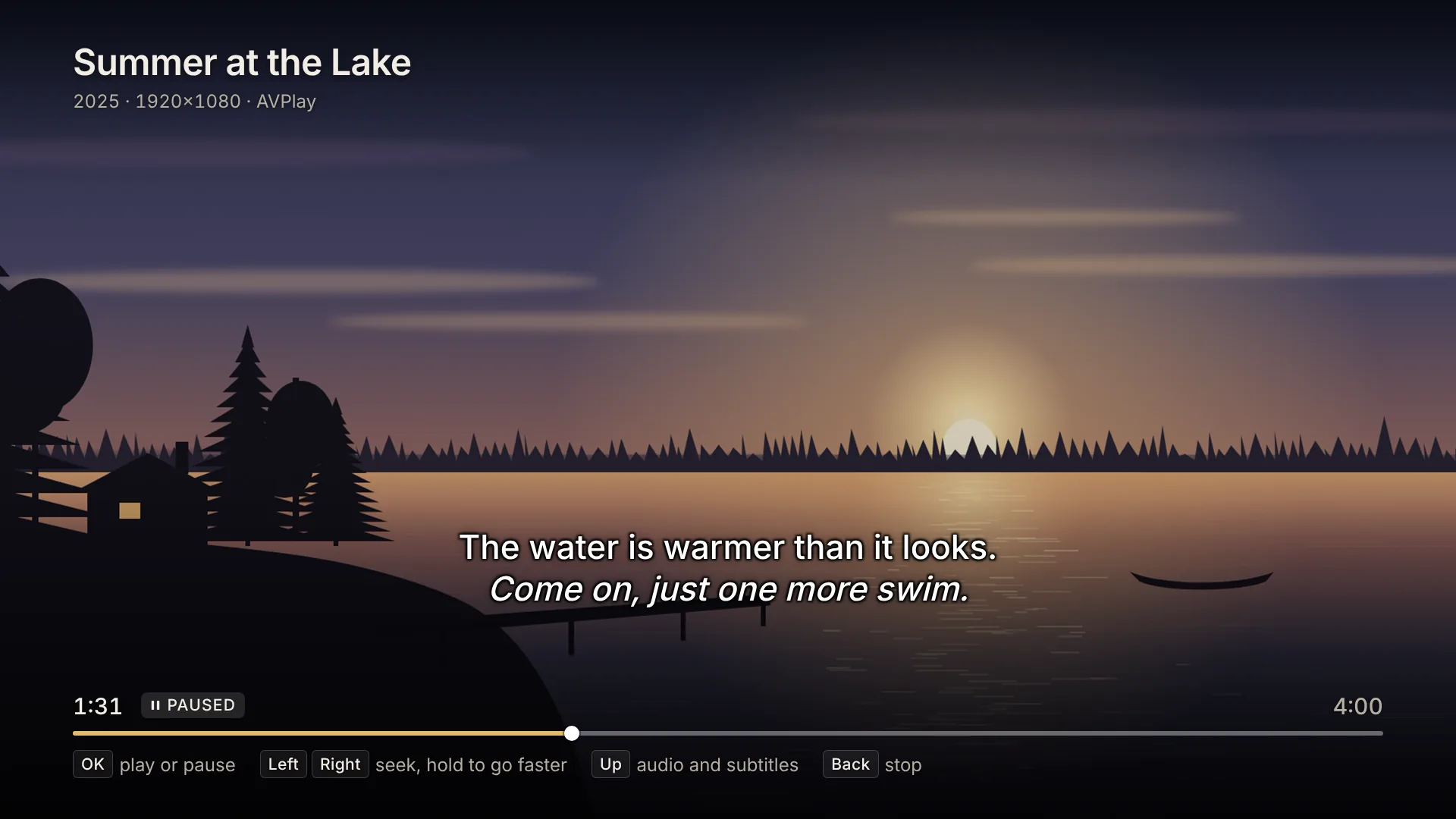
The audio and subtitles panel over a video. English subtitles are chosen; Finnish subtitles, Choose a File and Subtitle Appearance are listed below.

Subtitles and soundtracks

Subtitle files beside a video are found by their names and listed by language. Subtitles inside the file work too, including picture subtitles in the Blu-ray and DVD formats. Soundtracks many Samsung TVs can't decode, such as DTS and Dolby TrueHD, are decoded by the app, so the video plays with sound.

  • Choose any subtitle file on the drive, even one with a different name.
  • Change the size, color, backing and height of subtitles, and shift the timing of a subtitle file with Channel Up and Down.
  • A soundtrack in its own file beside the video can be chosen like any other.
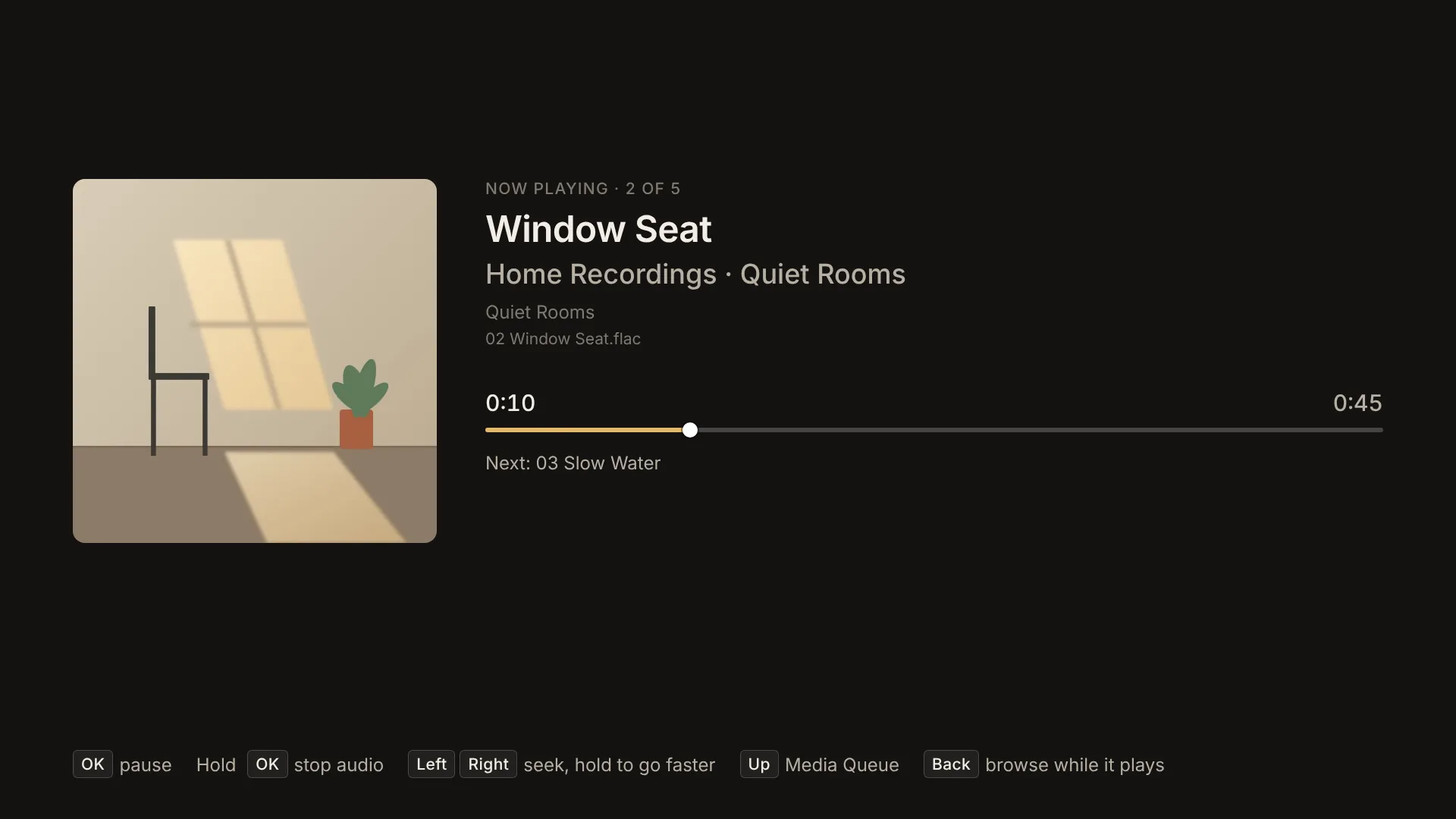
The audio player showing an album cover of a sunlit room and the track Window Seat by Home Recordings, 10 seconds in.

Audio, with covers and track names

Open a folder of audio files and they play in order, with the title, artist, album and cover read from the files. Go back to browsing and the audio keeps playing.

  • Lossless and high-resolution files: FLAC, Apple Lossless, WAV, AIFF and DSD.
  • Audio can keep playing behind a slideshow of your pictures.
  • The Media Queue shows what plays next.
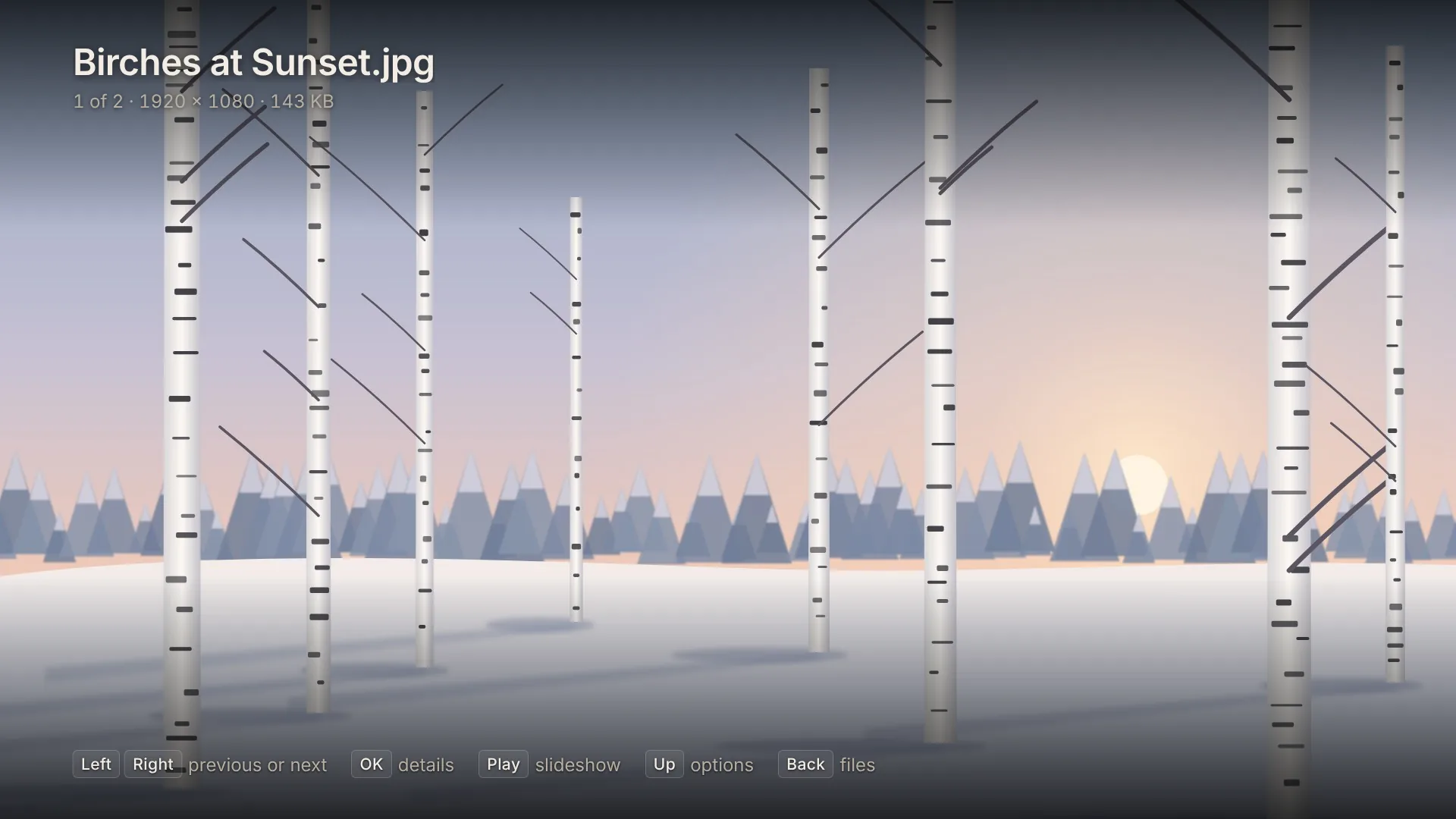
The picture viewer showing a drawing of birch trees in snow at sunset, first of two pictures in the folder.

Pictures from phones and cameras

HEIC photos from phones, TIFF scans and raw files from cameras open like any JPEG, and turn upright by themselves. Run a slideshow from any picture, in order or shuffled.

  • Each picture can stay from 3 seconds to 24 hours, so the TV can hang on the wall as a picture frame.
  • Raw files from Canon, Nikon, Sony, Fujifilm, Olympus, Panasonic, Pentax and others, and DNG.
  • Show or hide the photo's name and details.

What it plays

The TV's own player handles the common formats. Where it can't, the app does the work itself: it decodes DTS and Dolby TrueHD soundtracks, draws Blu-ray and DVD picture subtitles, and opens HEIC, TIFF and raw photos.

Video files
MKV, MP4, M4V, MOV, AVI, WebM, TS, M2TS, MPG, VOB, WMV, FLV and 3GP, with the video formats your TV supports, such as H.264, HEVC and VP9.
Soundtracks
AAC, MP3, Dolby Digital, Dolby Digital Plus, FLAC and Opus. DTS (including DTS-HD tracks, played from their DTS core) and Dolby TrueHD are decoded by the app.
Subtitles
SRT, WebVTT, ASS and SSA, SAMI, TTML, MicroDVD, Blu-ray (PGS, .sup) and DVD (VobSub, .idx and .sub), beside the video or inside it.
Audio
MP3, AAC, M4A and M4B audiobooks, FLAC, Apple Lossless, WAV, AIFF, Ogg, Opus, WMA, DSD (DSF and DFF), Dolby Digital, DTS and MKA.
Pictures
JPEG, PNG, GIF, BMP, WebP, HEIC and HEIF, TIFF, and raw: CR2, CR3, NEF, NRW, ARW, ORF, RW2, RAF, DNG, PEF and SRW.
Drives
USB sticks and external hard drives formatted exFAT, FAT32 or NTFS. FAT32 can't hold files over 4 GB, so use exFAT or NTFS for large videos.

Works offline

The app needs no account and shows no ads. It has no analytics. What you watch and listen to stays on the TV and on your drive. The app goes online only to check a purchase or a code, and to send a problem report when you choose to.

Read the privacy policy

Price

7 days free. Then €7.99 a year.

  • The free trial has everything in it, so you can check your TV and your files first.
  • €7.99 a year, VAT included. It renews each year until you cancel.
  • For one TV. Your code unlocks the same TV again after a reinstall.
  • If the app doesn't work for you, write within 14 days of paying and you get your money back.

Getting the app

USB Media Player is coming to the app store on Samsung TVs. Once it is there, open Apps on your TV, search for USB Media Player and install it. The free trial starts the first time you open it.

Buying the full version

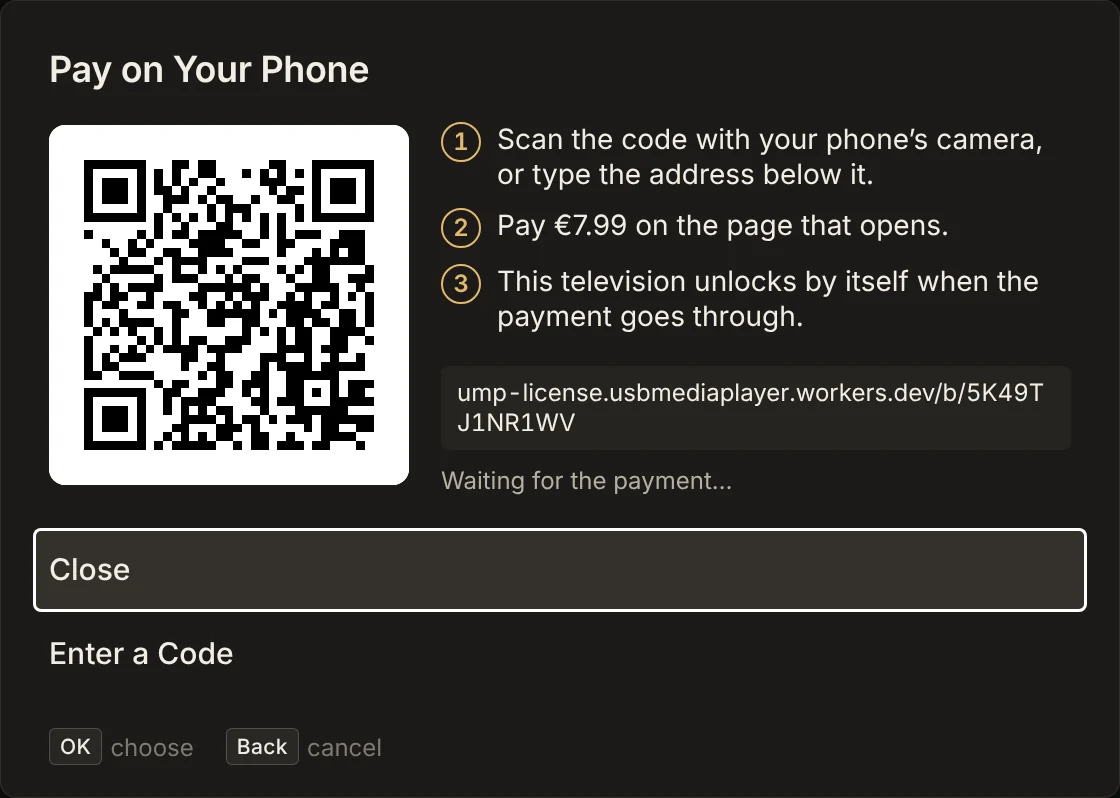
  1. On the TV, choose Settings › About › Buy the Full Version, or Buy when the trial ends.
  2. Scan the QR code with your phone and pay on Stripe's checkout page.
  3. The TV unlocks by itself. Your code is shown on the TV and on your phone. Keep it.

Have a code? Choose Settings › About › Enter a Code.

The Pay on Your Phone screen on the TV: a QR code, three steps, the address to type instead, and Waiting for the payment.

Questions

Which TVs does it work on?

Samsung smart TVs. Use the free trial to check it with your own TV and files before you pay.

Do I need the internet?

Only when you pay or enter a code. Everything else works offline.

What kind of USB drive do I need?

Any USB stick or external hard drive the TV recognizes, formatted exFAT, FAT32 or NTFS. For videos over 4 GB, use exFAT or NTFS.

Where does it keep my place in a video?

On the drive, in a small folder named .usb-media-player. Move the drive to another TV with the app and your places come with it. Settings stay on the TV.

Can I use it on more than one TV?

A subscription covers one TV, so each TV needs its own. Reinstalling on the same TV is covered: enter your code again.

Why a yearly subscription?

Because the work continues after release. Samsung keeps updating its TVs, file formats change, and the app needs fixes and new formats to keep up. The service that checks purchases and codes also costs money to run every year. A small yearly price pays for that, and keeps the app free of ads and tracking.

How do I cancel?

Write to usbmediaplayer@gmail.com with the time of the payment or the last four characters of your code, and we cancel the subscription. The app keeps working until the end of the year you have paid for.

How do I get a refund?

Write to usbmediaplayer@gmail.com within 14 days of paying, with the time of the payment or the last four characters of your code. You get your money back and the code is cancelled.

I lost my code.

Write to usbmediaplayer@gmail.com with the time of the payment or the email address you used at checkout, and we will find it.

A file doesn't play. What now?

The app tells you why in plain words. Settings › About › Report a Problem sends a report to us. You see the whole report first, and it never includes your files or their names.